COMPONENT
View live preview
Dynamic 3D Builder
Is a no-code Framer component for building and animating custom 3D scenes. Easily use built-in shapes or import custom models to create interactive hero backgrounds, product showcases, and brand animations.
How It Works
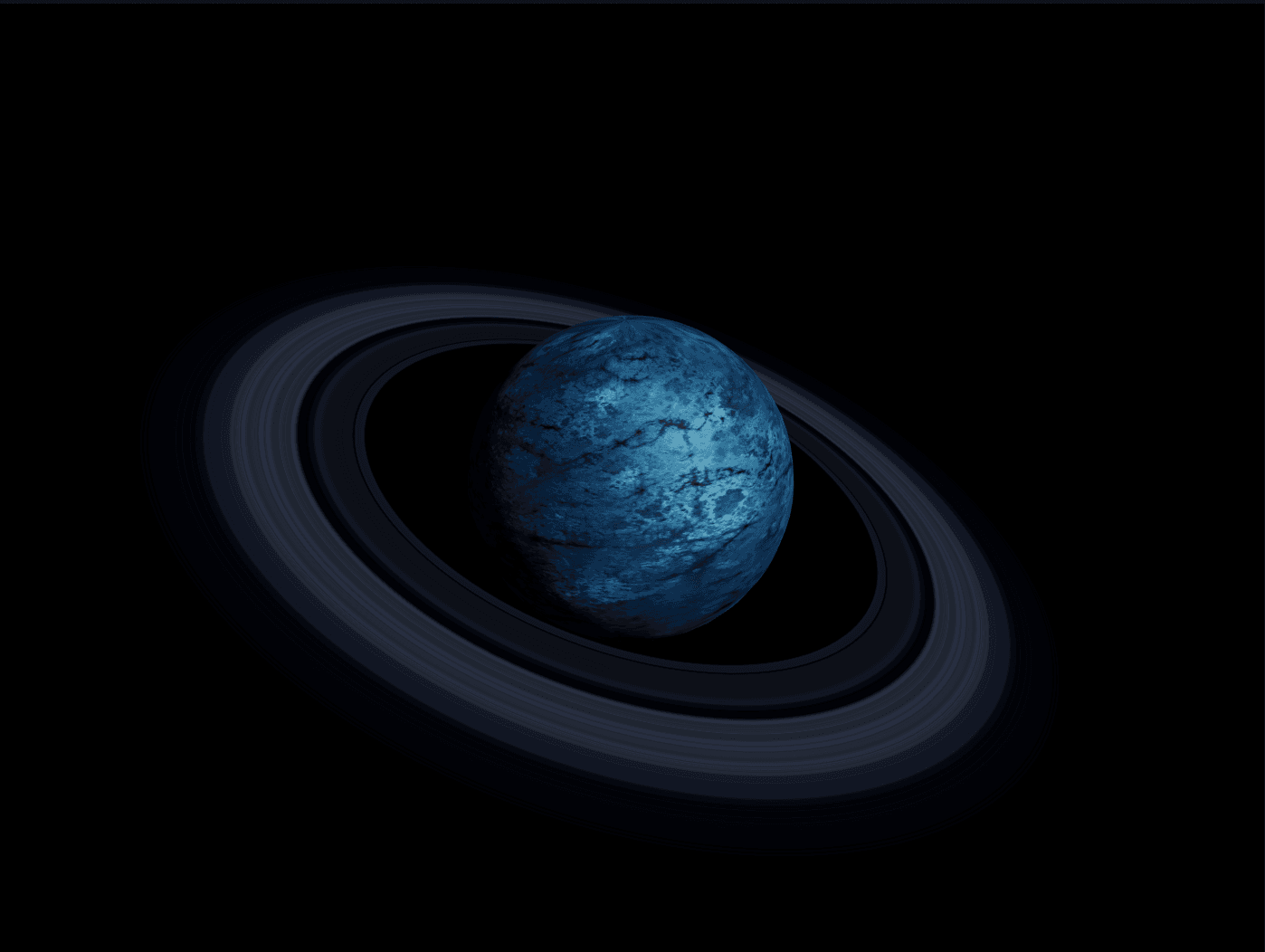
The component renders a live 3D scene inside a box on your page. You can add one or more shapes to that scene, then control each shape’s size, position, rotation, color, material (matte, metallic, glossy, wireframe, etc.), and even attach custom visual effects. You can also set up lighting, fog, a background environment image, and a camera angle.
Whenever you change a value in most controls — like moving a shape or changing its color — the scene smoothly animates to the new state instead of jumping instantly, giving it a polished, professional feel. Shapes can also spin continuously on their own if you want ongoing motion. On top of that, visitors can optionally interact with the scene directly: dragging to orbit around it and scrolling to zoom in and out or animate through different framer component variants on user action.
Setup Guide
Step 1 — Copy the component into your own Framer project’s components panel. No separate overrides are required.
Step 2 — Add it to your page by dragging an instance of “Dynamic 3D Builder” from your components panel onto any page or frame. Resize the frame to control how large the 3D scene appears. No manual override wiring is needed. Simply select the instance on the canvas to reveal all available settings in the right-hand properties panel.
Step 3 — Customize it using the properties panel — add shapes, adjust their look and placement, set lighting and camera, and toggle animation and interaction behaviors (see Customization Options below).
Device / Platform Notes
This component uses real-time 3D rendering, so it relies on the visitor’s device supporting standard web graphics. All modern desktop and mobile browsers support this.
For best performance while editing, keep the “Live Animation” setting off if you don’t need to preview motion — this reduces processing load in the editor. Turn it back on to preview animations or before publishing if the scene should animate live on the published site.
Large or highly detailed custom 3D models may take a moment to load the first time on a slow connection.
“Orbit” and “Scroll Zoom” rely on mouse drag and scroll-wheel input, so they work great on desktop; on touch devices, orbit works via touch-drag, but scroll-wheel zoom has no touch equivalent (pinch-to-zoom is not currently supported).
Customization Options
General
Live Animation — turns real-time animation and rotation on or off (useful to save performance while editing).
Shapes (repeatable list — add as many as you like)
Type — choose the shape: Sphere, Box, Cylinder, Torus, Plane, Flat Ring, or import your own Custom 3D Model (OBJ or GLB file).
Geometry settings (specific to each shape type) — size, thickness, radius, height, and smoothness/detail level.
Position (X / Y / Z) — moves the shape in 3D space.
Rotation (X / Y / Z) — tilts or turns the shape.
Scale — resizes the shape.
Pivot Point — changes the point the shape rotates around (its own center, or a custom point in the scene).
Spin — makes the shape rotate continuously on its own, with adjustable axis, speed, and direction.
Own Timing — lets a shape use its own animation speed/style instead of the global setting.
Color, Roughness, Metalness — sets the shape’s base look.
License
Free for personal and commercial work, including templates you sell. Not for resale or redistribution as a standalone component.
Feedback & Updates
This component is actively maintained. If you run into unexpected behavior in a specific setup, reach out with a quick description of what you were doing (which controls, values, device/browser) and it’ll be looked into for the next updates.